How to Auto-Enroll in Offers? | Astro Retailers

This feature allows you to auto-enroll in Offers for specific brands. Your store will automatically be enrolled for current and any future Offers from that brand.

Auto-enrollment will NOT affect any manually enrolled offers.
How to Setup Auto-Enrollment:
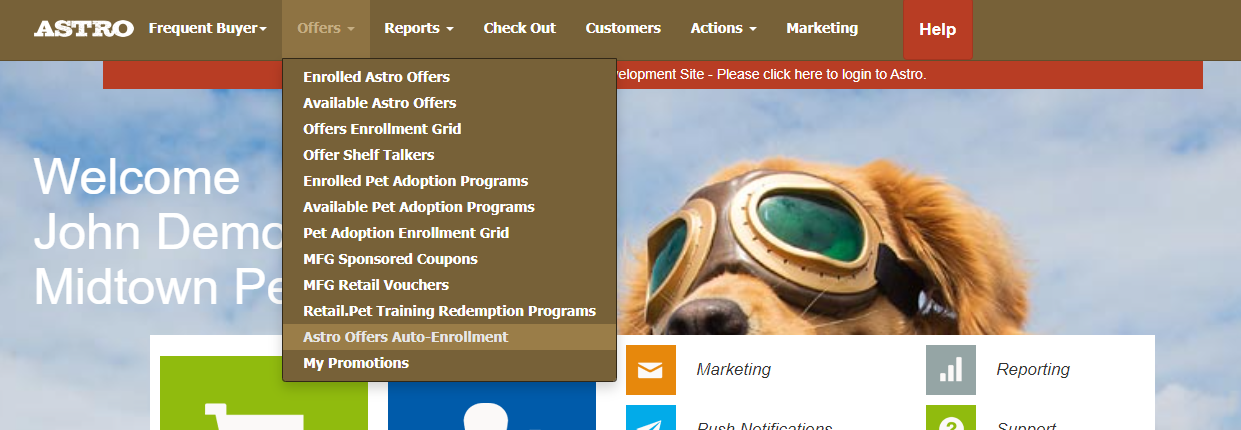
1. As an Admin user, go to the Offers menu.
2. Select Astro Offer Auto-Enrollment
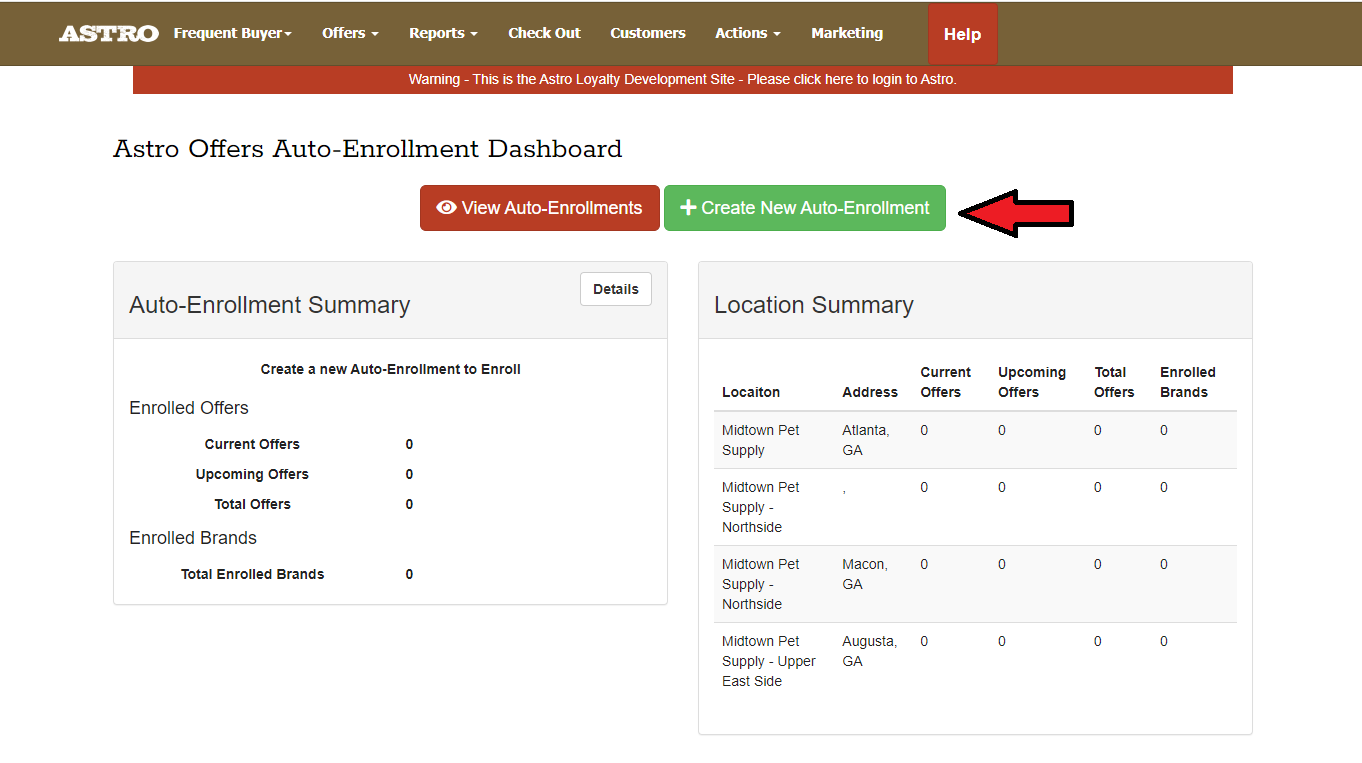
3. Select Create New Auto-Enrollment.
4. If you are a multi-location account, you can select All Locations or per Location. If you are a Single Location account, you will not see this step.
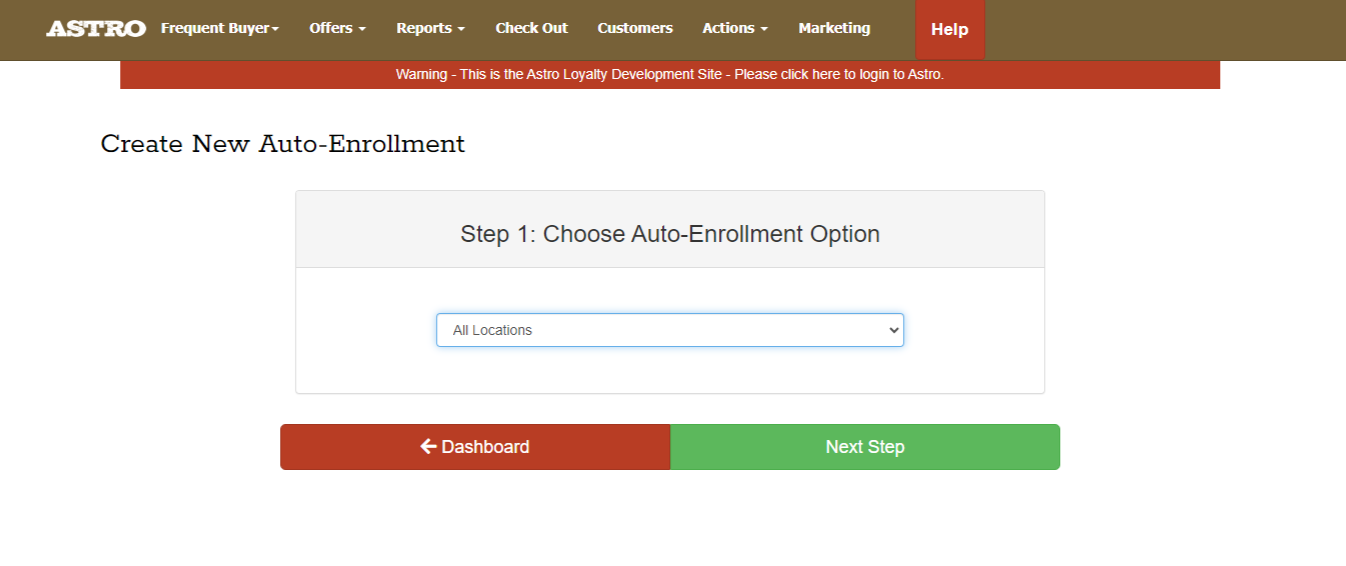
Multi-Location Accounts - Locations in Different States:If you are a multi-location account, the All Locations option only shows distributors serving all locations. If you are not seeing a distributor option, it may be that they dont distributor to all those states. You can switch to the Individual Location option and select specific locations in the same states. The Individual Location option will include distributors that only serve the combined states of the locations selected.
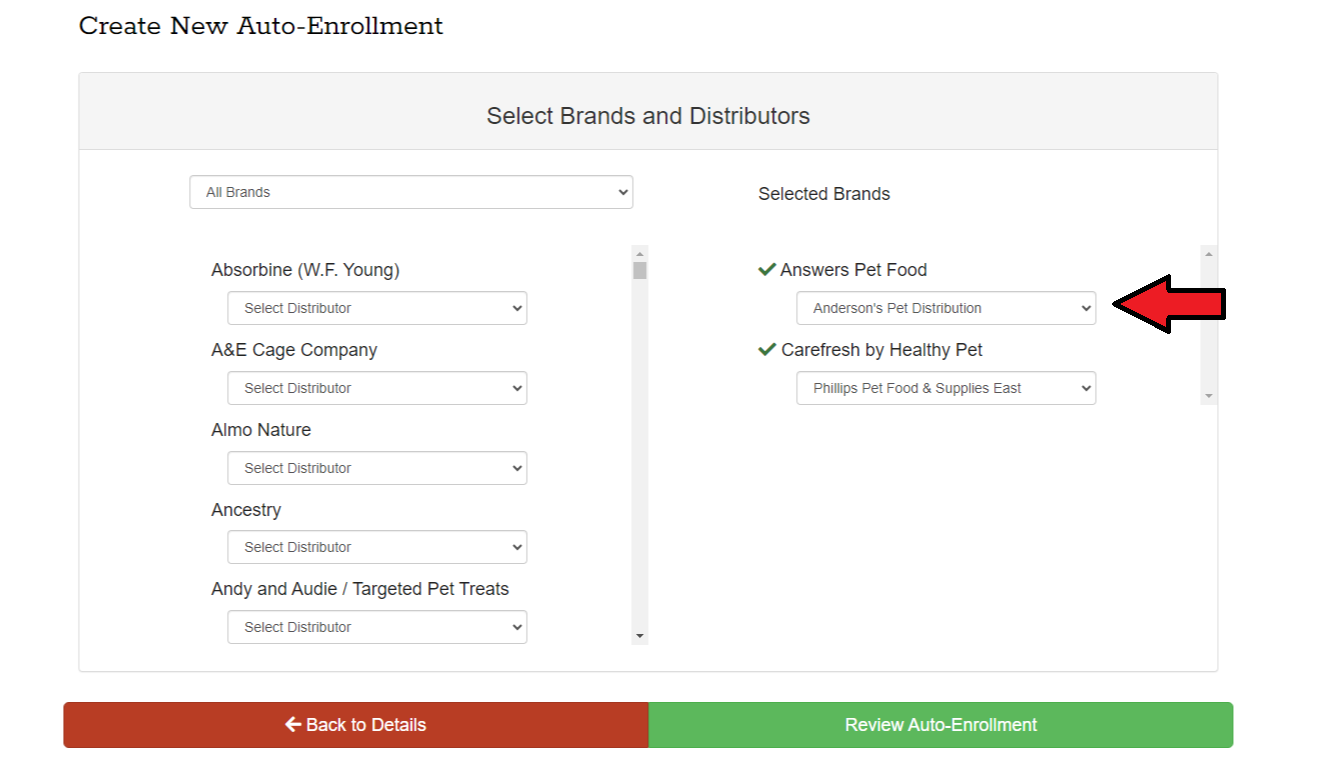
5. Select the Brands and Distributors you would like to auto-enroll in on the left. You can filter the brands using the drop down filter at the top then choose the distributor using the drop downs under the brand's name. Once you have a distributor selected, you will see a check mark next to the brand name and will move to the right side. When you have selected the distributors for all of the brands you would like to auto-enroll in, click Review Auto Enrollment.
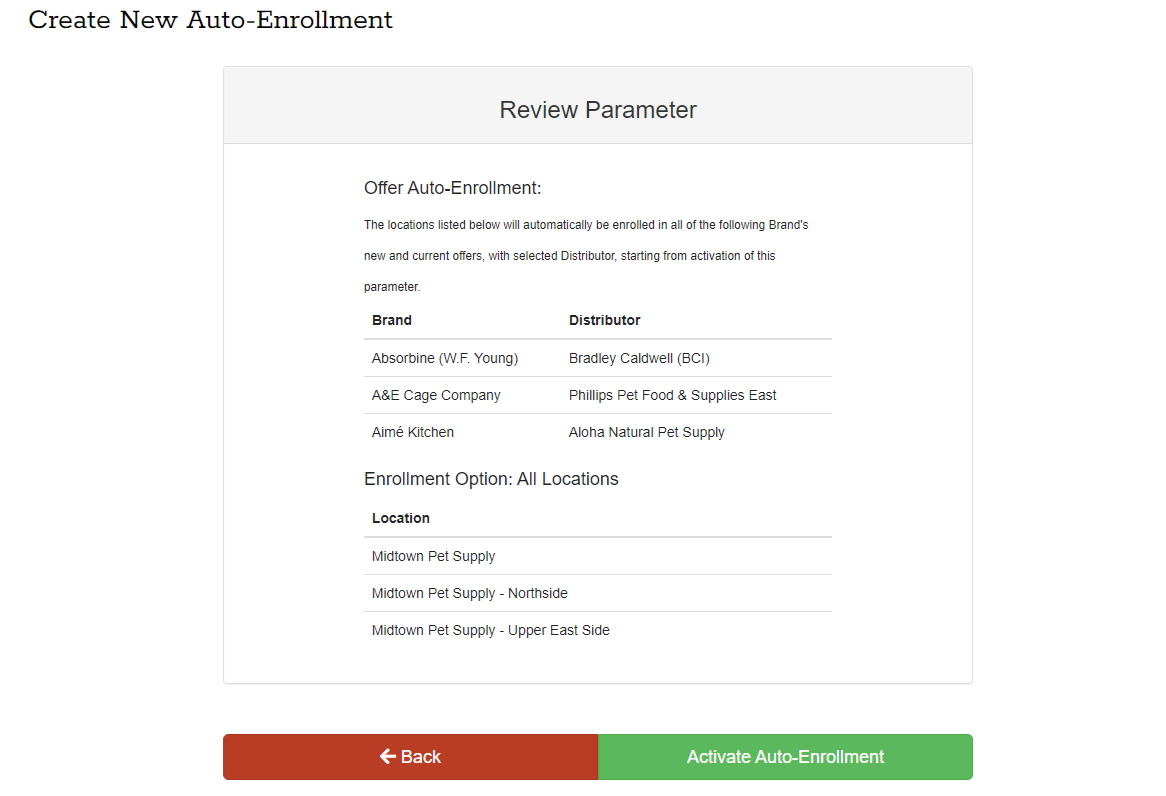
6. The Review Parameter page will show you the brands you selected distributors for and locations (if you are a multi-location account). If everything looks correct, then select Activate Auto-Enrollment.
7. You will be prompted with a Terms & Conditions pop-up. This is to ensure that you understand by auto-enrolling in current and future Offers that you are agreeing to the Terms & Conditions of those Offers.
8. If you agree, then you will be taken back to the Auto Enrollment Dashboard. Here you will see total number of Offers the store(s) is enrolled in now and how many upcoming Offers.

If you unenrolled from an Offer before setting up an autoenrollment for that brand it will re-enroll you in that offer.
If you unenroll from an Offer after setting up autoenrollment for that brand it will not re-enroll you.
If you unenroll from an Offer after setting up autoenrollment for that brand it will not re-enroll you.
Edit Auto-Enrollments:
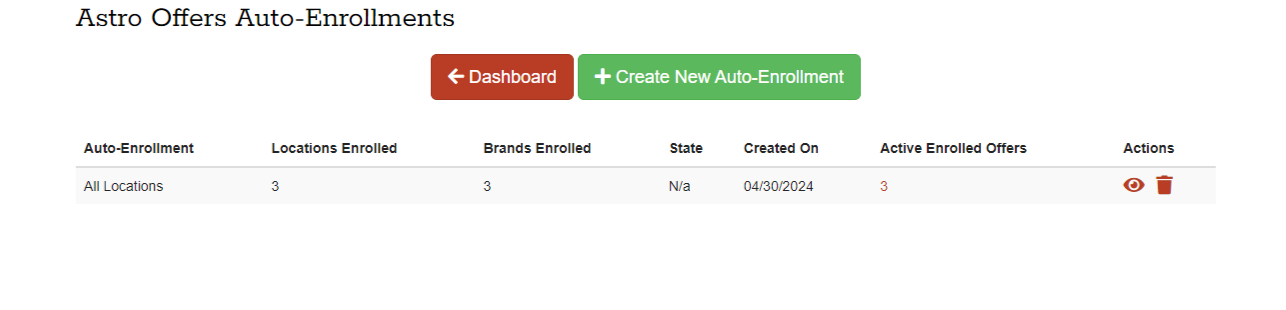
If you click on the View Auto- Enrollments button, you can see any current enrollments set up. You can delete any auto-enrollment set ups you create. If you click on the Eye Icon, you can edit your existing setups.
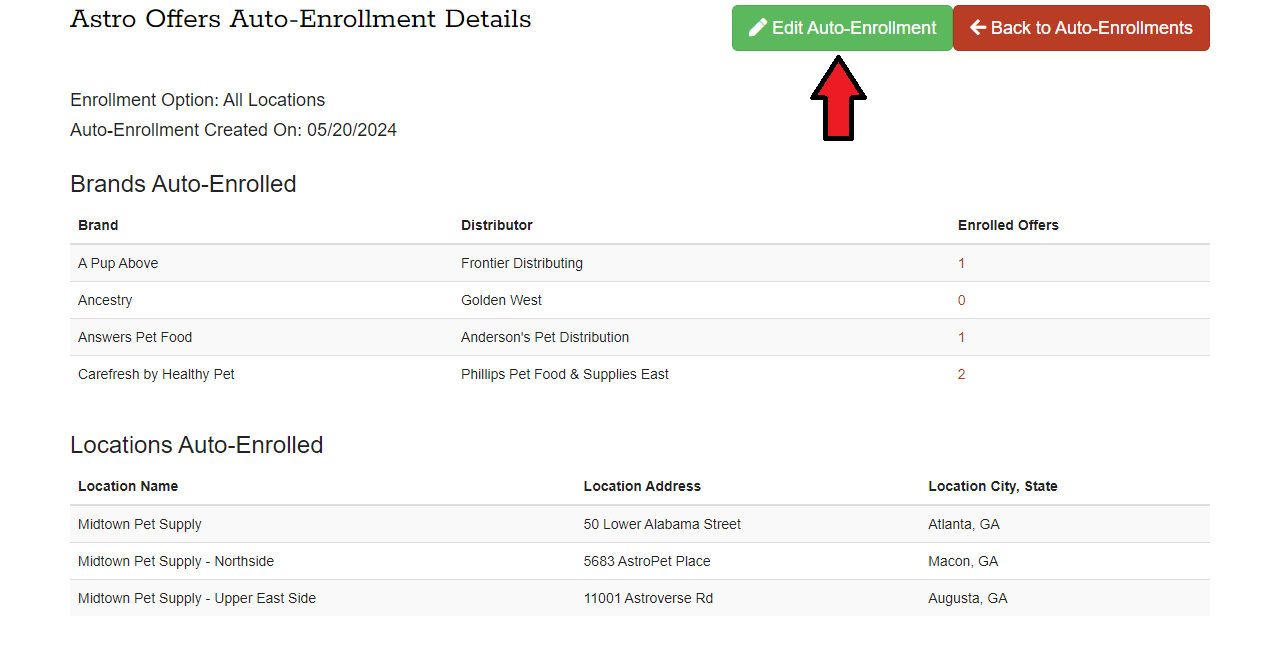
If you clicked the Eye icon, you should see this page. Click the Edit Auto-enrollment button to edit your current setups.
Update the filter on the right to "Select Distributor" option, that will move the brand back to the left side and will no longer be auto-enrolled in that brands Offers. Once done, select Review Auto-enrollments.
You will be taken back through the same steps as #6-8 above.
You will be taken back through the same steps as #6-8 above.
Email Notifications:
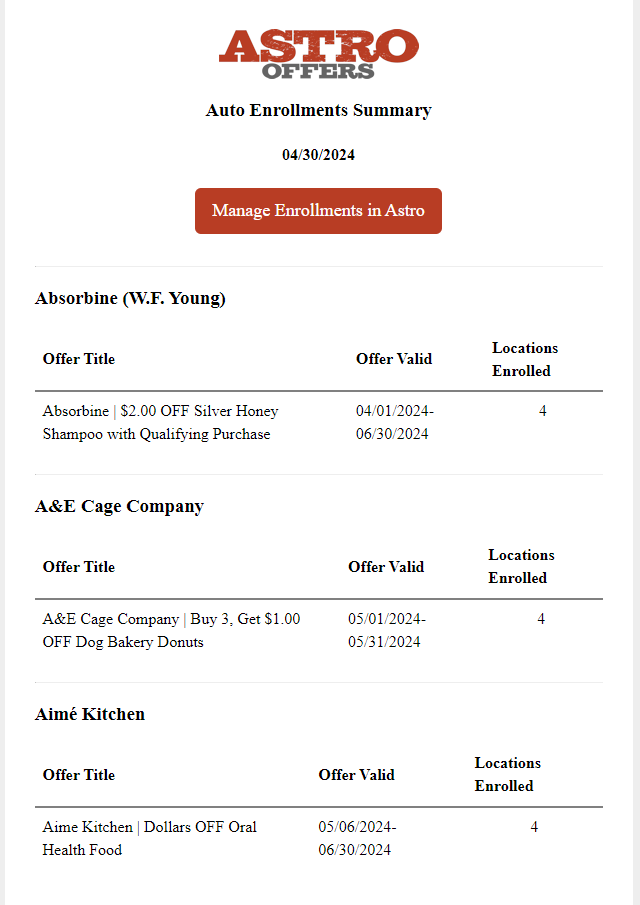
Once you have an auto-enrollment setup, you will receive an email Summary showing the Offers that the store is auto-enrolled in on the 1st of the Month, middle of the month and 5 days prior to the next month.
Action Required:
After setting up your auto-enrollments, if there is an issue with an Offer enrollment you will taken to an action required page upon logging into Astro.
If a distributor is not available for an Offer, you'll be able to update the fulfillment on this page by clicking on Select Fulfillment.
If you select Dismiss, you acknowledge that you are not enrolling in that Offer and will remove it from the action required page.