How to Add Astro Button | Shopify POS

How to Add Astro Button | Shopify POS


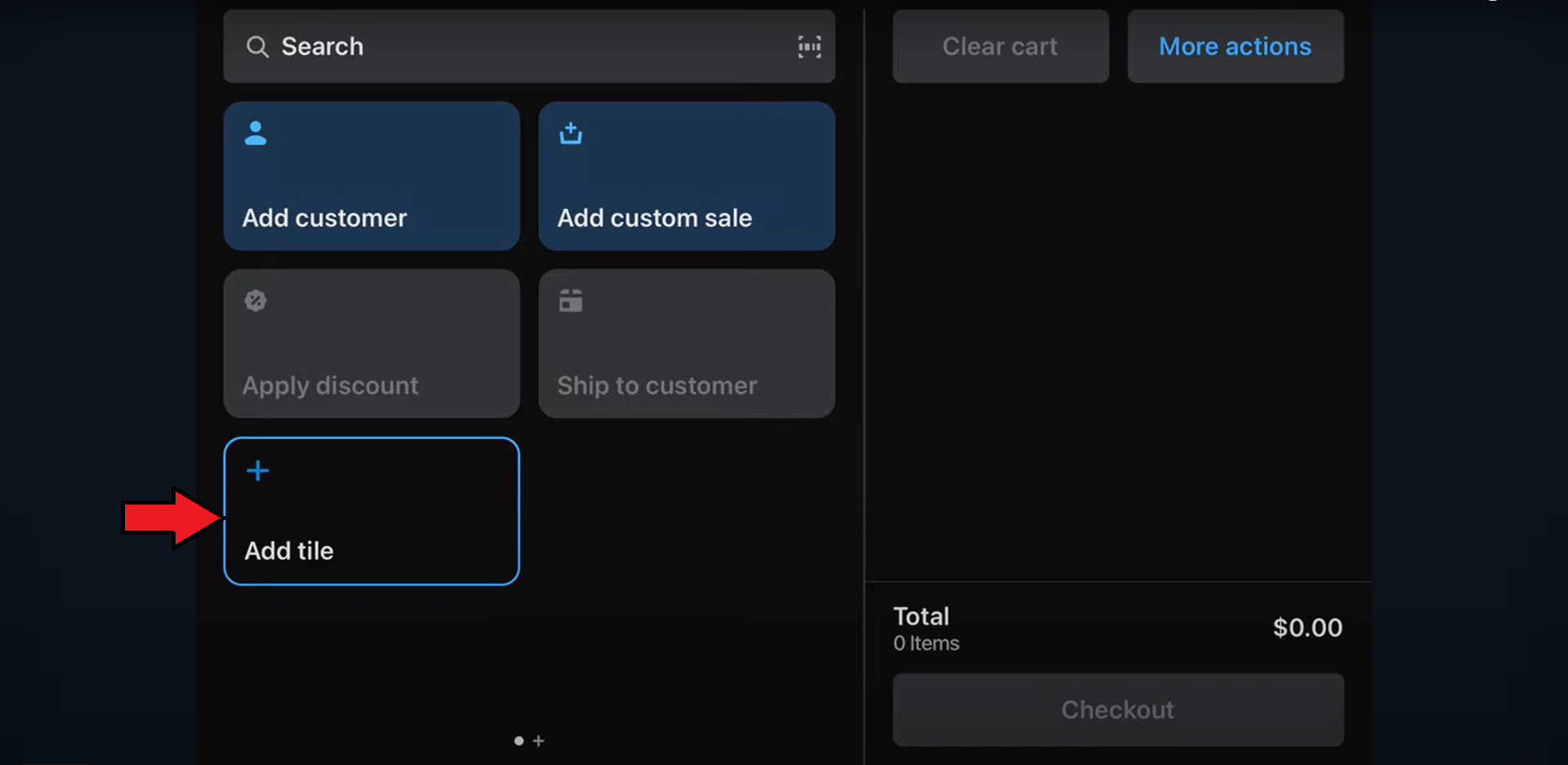
1. Click on Add Title on your Shopify POS. 

2. Select the App option. 


3. Click on the Astro Loyalty option. 


4. Select Add. This will add the Astro App as a tile in your POS admin.


    • Related Articles

    • How to Link Existing Astro Customers | Shopify POS

      In the scenario that you have an existing Astro customer and that customer is already setup in your Shopify admin, you simply need to link their Astro account to their Shopify account so future purchases are recorded properly. 1. Click on Add ...
    • How to Redeem Offers | Shopify POS

      Make sure you are enrolled in Astro Offers before proceeding: How to Enroll in Offers | Astro Offers 1. Add the customer to the sale. 2. Add the items to the sale including the reward item. 3. Click on your Astro Loyalty button. 4. Click the Astro ...
    • Setup New Astro Customer | Shopify POS

      1. Click "Add Customer" and enter the new customer's details. 2. Enter in the contact information. Email and phone number are required to enroll. 3. Add their purchase items to the cart. 4. Click the Astro Loyalty button 5. Select Sign Up for Astro ...
    • How to Enable | Shopify Ecommerce Integration

      Ecommerce Instructions *The Shopify Ecommerce integration is by Mighty App. If you are a Non- Mighty App account, there is a fee for using their app. Please contact their support for any questions about the integration: ...
    • How Customers Earn Loyalty Points | Shopify Ecommerce Integration

      Loyalty Points is an additional service we offer, if you would like to have Loyalty Points enabled for your account or would like more information, please contact support@astroloyalty.com. If you have not set-up your Loyalty Points yet, please view ...