How to Add and Checkout Customers | Epicor PROPELLO Partial Integration

Epicor Propello Integration ONLY

To enable the integration on the Epicor Propello side, please contact your Epicor Customer Account Manager for assistance.
To have the integration enabled on your Astro account, please contact our support team; support@astroloyalty.com
To have the integration enabled on your Astro account, please contact our support team; support@astroloyalty.com
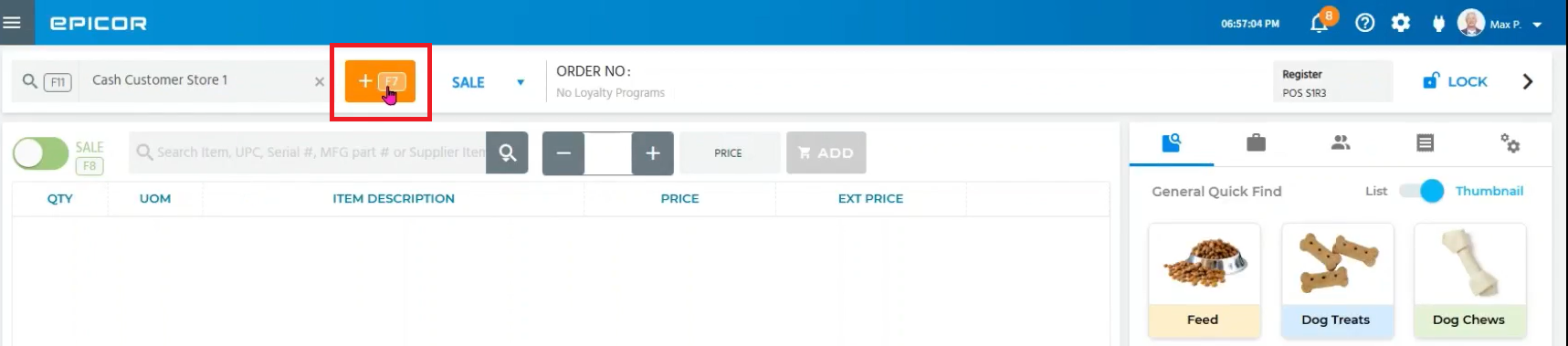
1. If you need to add a New customer into Propello and Astro, click the + button.
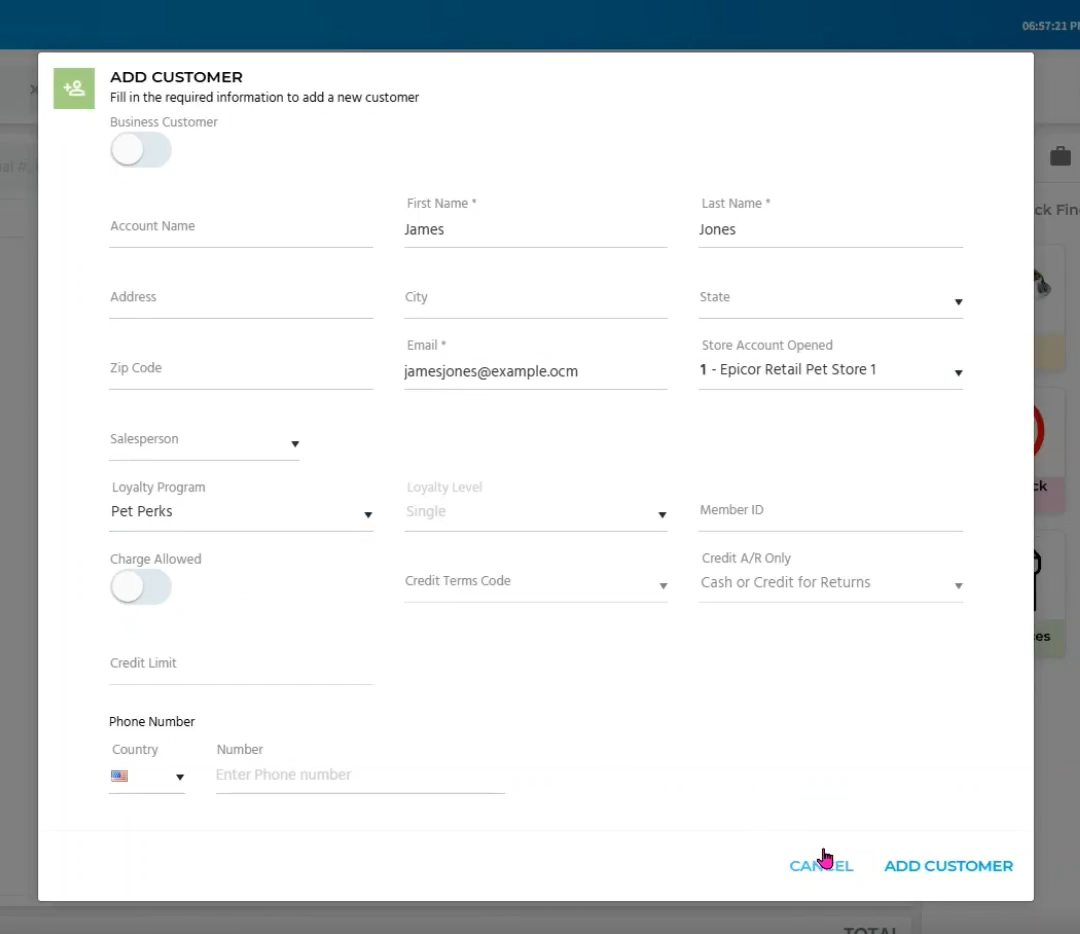
2. Enter in the customers information then click Save Customer. Pet Perks must be selected on the customer's Propello account.
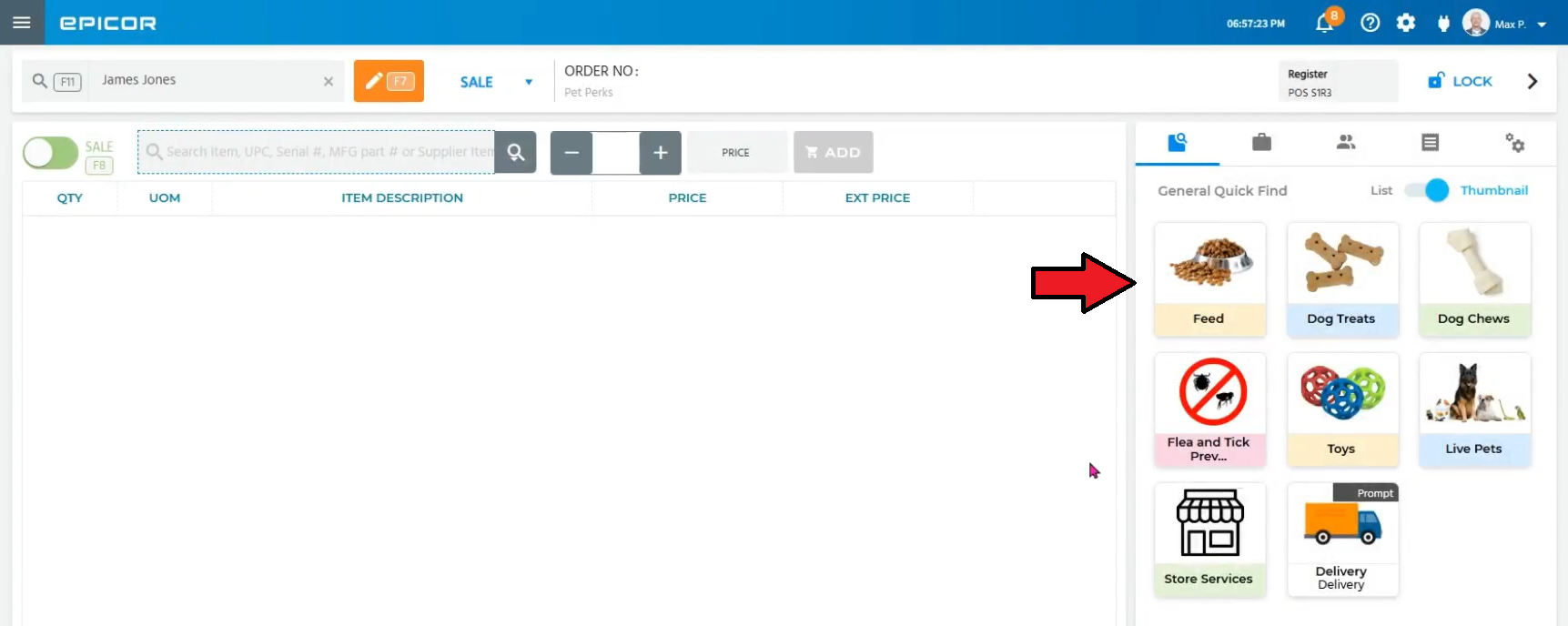
3. Select Feed.
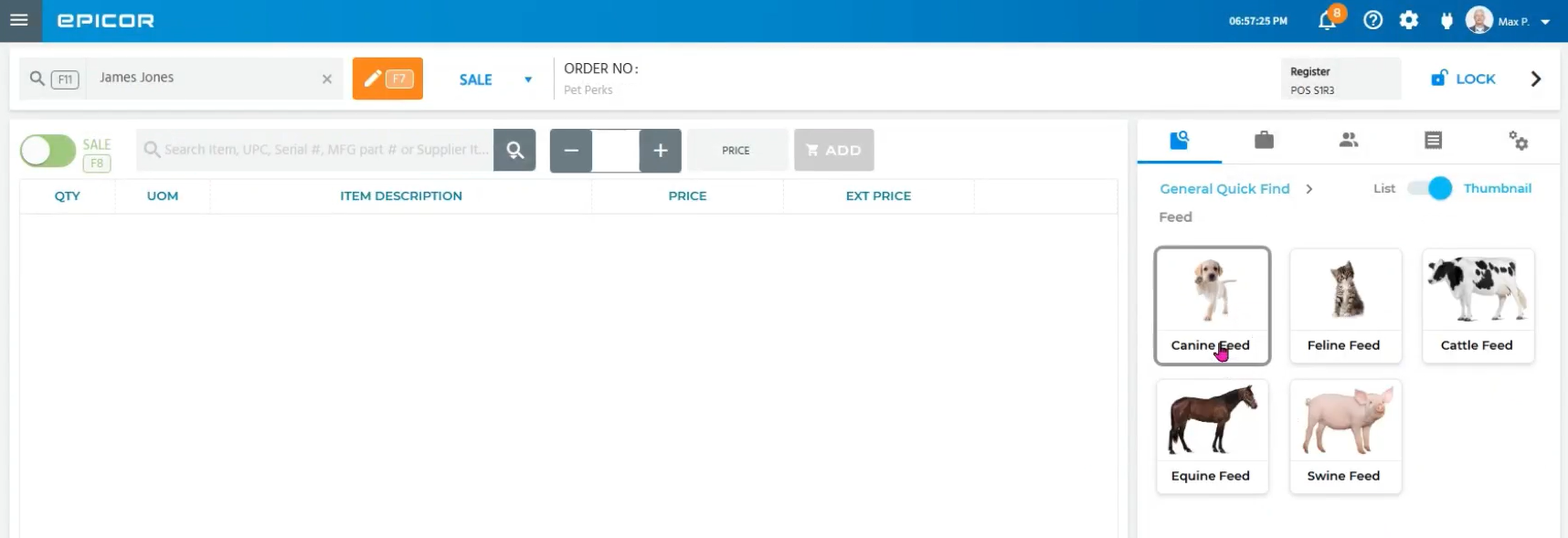
4. Choose the Species. In this example, we are choosing the Dog.
5. Add the customer's purchase(s).
6. Click on Settings.
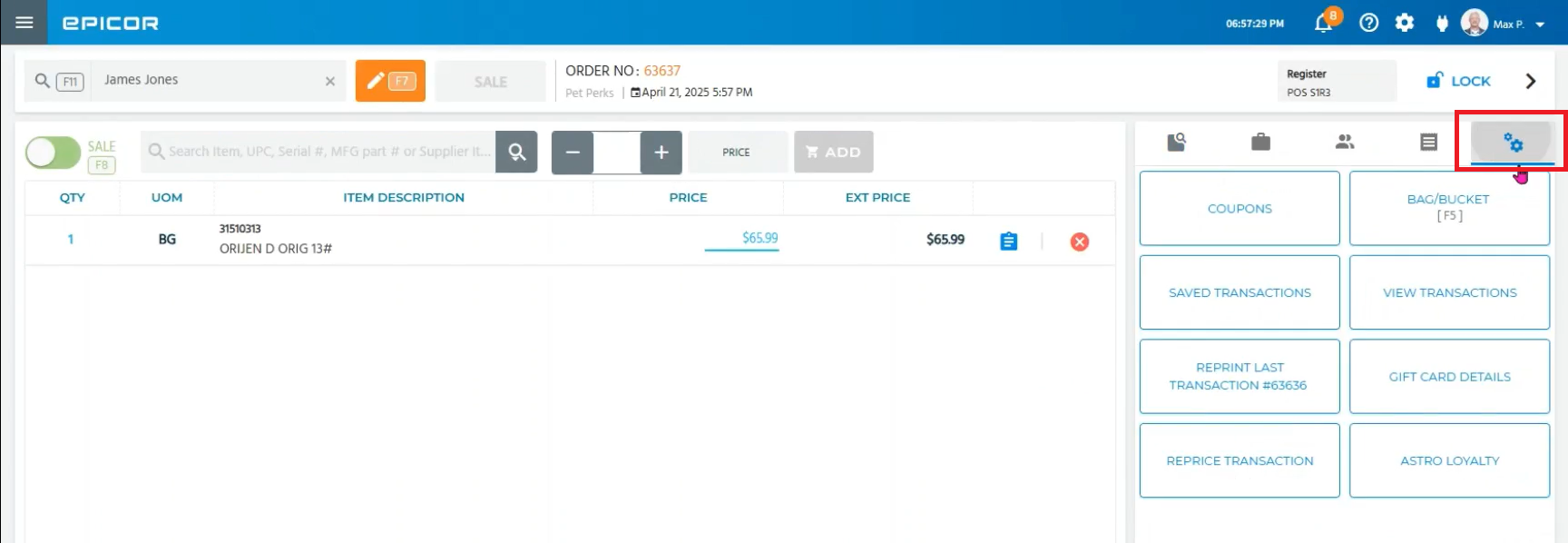
7. Select Astro Loyalty.
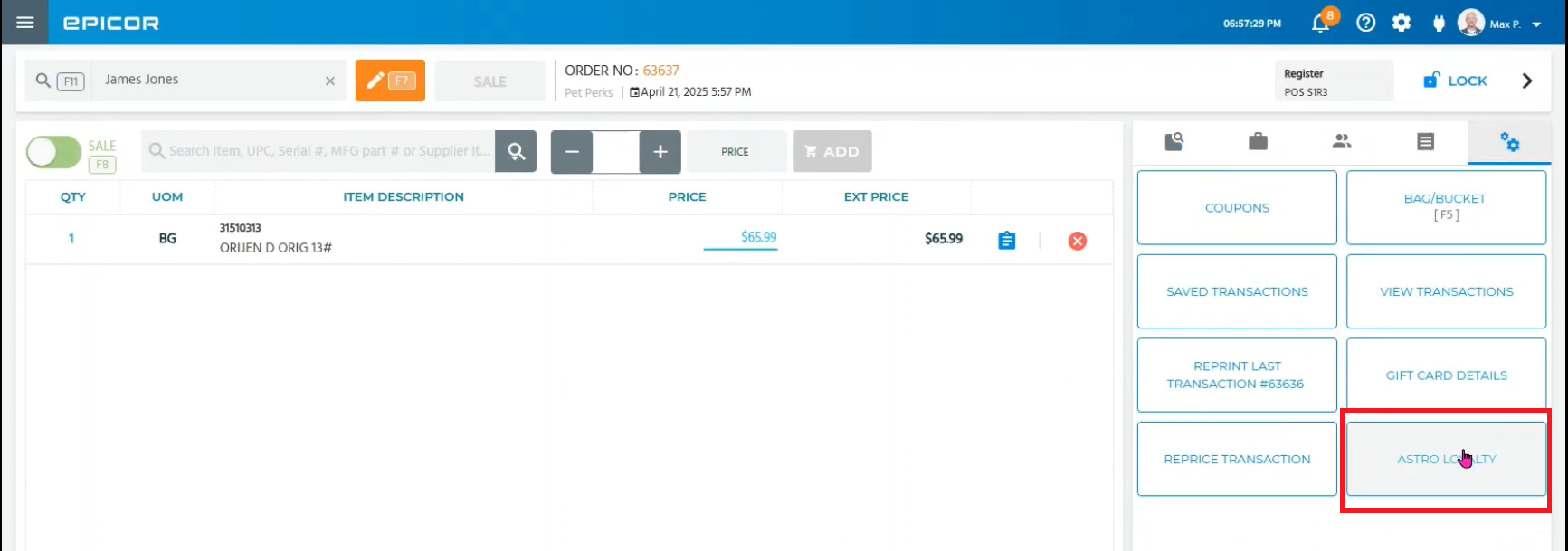
8. The integration will search for the customer via Last Name.
If this is a brand new customer who does not have an Astro account already, click on Create New Account.
If the customer is already in Astro, you can click the Select button next to their Pet Owner account to link them. In this example, we are adding them as a brand new customer.
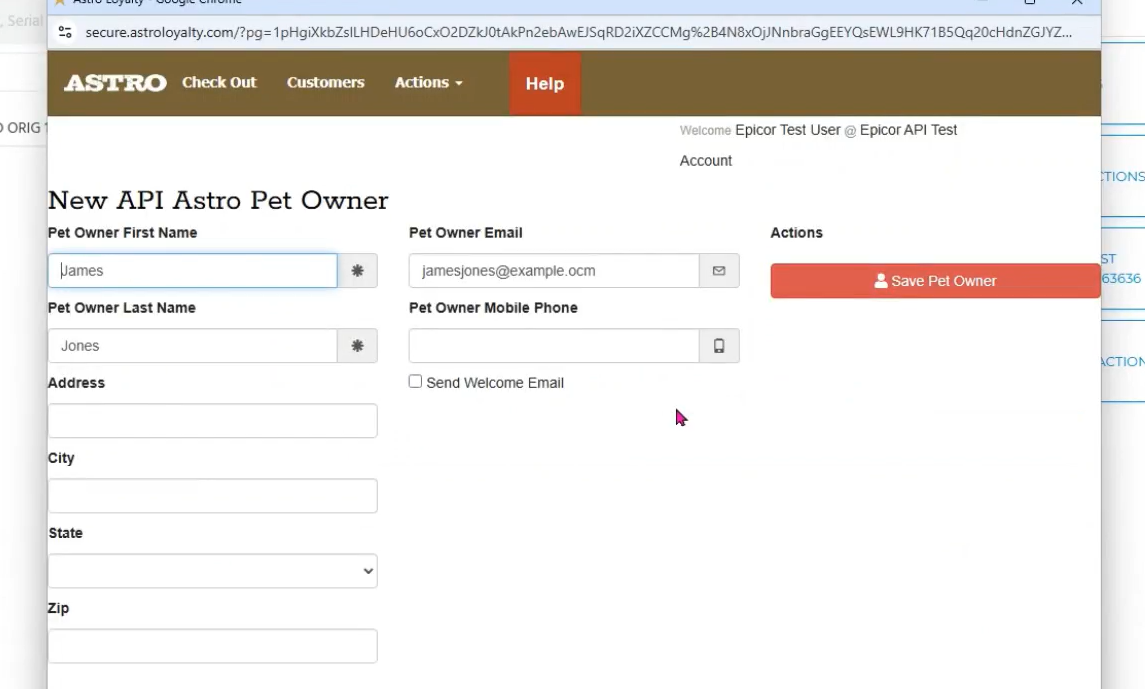
9. If you selected Create New Astro Account, you will see the customer's information populate in Astro. Click Save Pet Owner.
10. Make sure everything looks correct under Today's Purchases, then click Checkout.
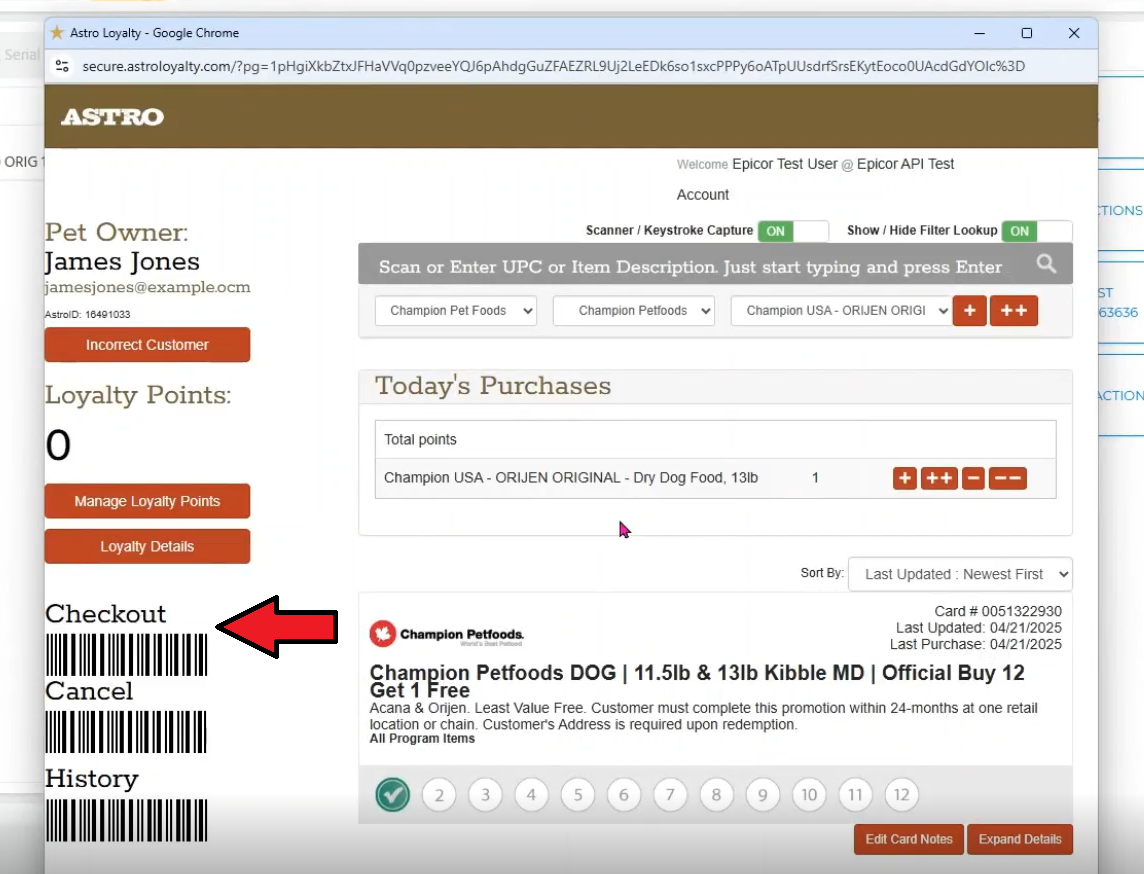
11. If everything looks correct, select Finished.
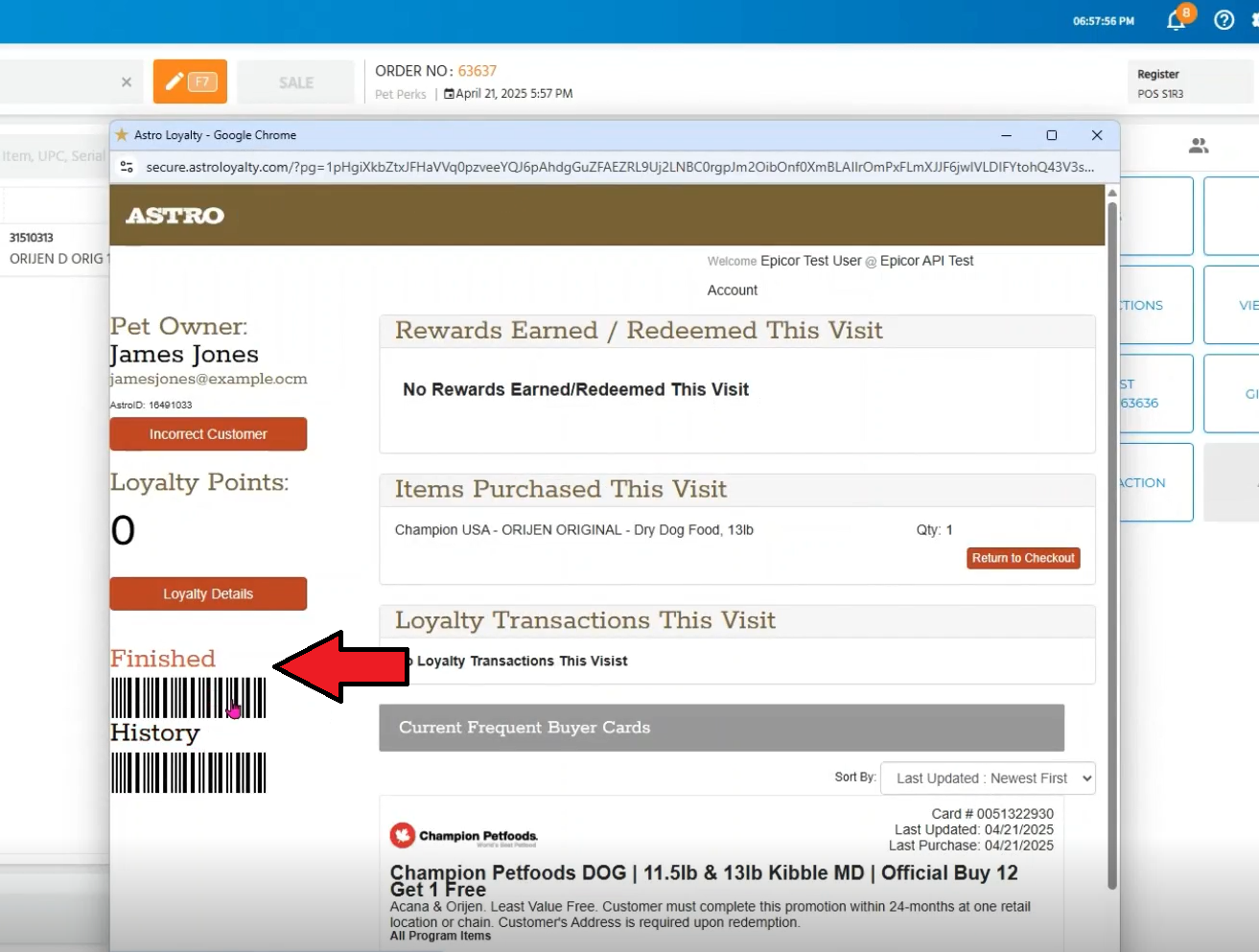
12. You will be taken back to your Propello sale screen and can select Make Payment to finish out the transaction.